
A fast internet plan doesn’t guarantee clear office VoIP calls. To fix office VoIP call quality, start by checking jitter and packet loss: aim for jitter under 30 ms and packet loss below 1%, then look for congestion or Wi-Fi problems that could disrupt voice traffic.
Crackling, broken words or dropped calls can make routine customer conversations harder than they need to be. It’s natural to suspect the internet connection, but inconsistent performance, competing uploads, a wireless handset or a faulty cable or device may also be to blame.
This guide explains jitter and packet loss, how to compare calls on wired and Wi-Fi devices, and what to check on your network. You’ll also learn how bandwidth affects simultaneous calls, helping you narrow down the likely cause and choose a practical next step for your office.
Key Takeaways
- Use jitter, packet loss and latency readings together to pinpoint whether inconsistent delivery is affecting call clarity.
- Look for upload-heavy activity, such as backups and video calls, that may compete with voice traffic during busy periods.
- Compare Wi-Fi and wired handsets, then review whether voice traffic is prioritised consistently across the network.
- Estimate how many calls may happen at once and account for the bandwidth each call needs in both directions.
What are jitter and packet loss, and how do they affect calls?
Check latency, jitter and packet loss together. Even a fast connection can produce poor calls if voice packets arrive late, unevenly or not at all.
-
Assess call quality with MOS
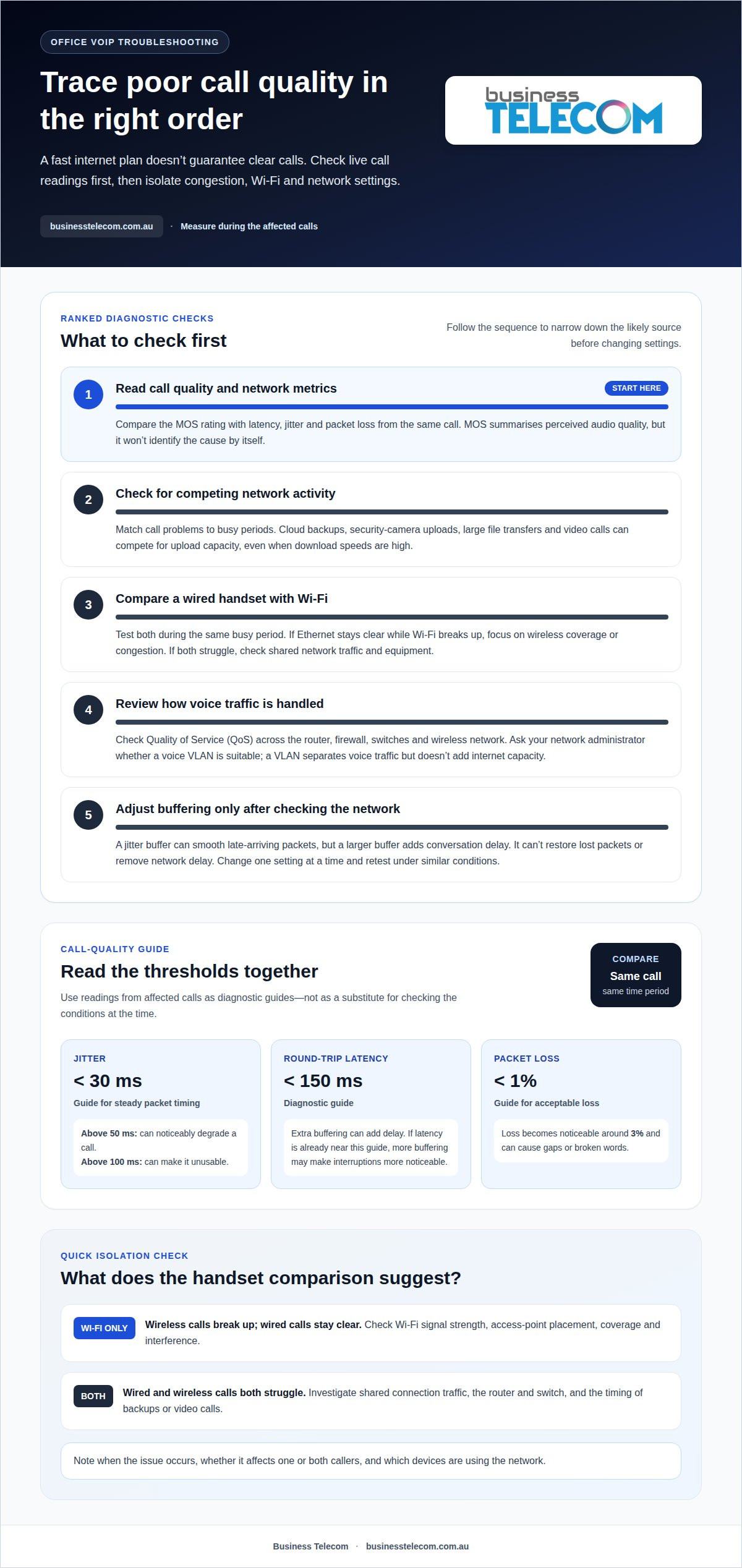
Start with a call-quality report and its Mean Opinion Score (MOS), a rating that summarises perceived audio quality. Compare the MOS with latency, jitter and packet loss readings from the same call. A single score won’t reveal which network condition caused distortion.
Use these thresholds to guide troubleshooting: keep jitter under 30 ms, round-trip latency under 150 ms and packet loss below 1%. Jitter above 50 ms can noticeably degrade a call, while above 100 ms can make it unusable. Packet loss becomes noticeable around 3%. Treat these as diagnostic guides, not substitutes for readings taken during affected calls.
Record when the issue occurs and whether it affects one or both callers. For example, a low MOS alongside elevated jitter suggests inconsistent packet timing, while packet loss can cause gaps or broken words.
-
Use jitter buffers and delay compensation
If monitoring shows uneven packet arrival, review the jitter buffer settings. The buffer holds voice packets briefly before playing them in a steadier sequence, reducing the audible effect of timing variation. It can smooth choppy audio when packets arrive late but are still usable.
Check the trade-off: a larger buffer can add delay to a conversation. Buffering can’t restore packets that were lost or remove delay already present across the network. If latency is already near the 150 ms round-trip guide, extra buffering may make interruptions more noticeable.
During troubleshooting, compare call reports and audio before and after adjusting the buffer. Change one setting at a time, then repeat a test call under similar conditions. If packet loss remains elevated, investigate the network path rather than relying on delay compensation to mask it.
Why is my VoIP call quality poor?
Network congestion can disrupt voice traffic even when download speeds are high. Note when problems occur and which devices are using the network.
-
Identify congestion from uploads and backups
Compare call reports with network activity during the affected period. Cloud backups, security-camera uploads, large file transfers and video calls can use up upload capacity, delaying voice packets even when downloads remain fast.
Look for a repeatable pattern, such as calls degrading whenever a scheduled backup runs. A 100 Mbps NBN connection can still produce poor calls if jitter is high; speed alone doesn’t describe consistency.
Check whether several users report the issue at the same time. If calls become unclear during a busy video meeting, investigate competing uploads before changing phone settings.
-
Separate voice traffic with VLANs
Ask your network administrator to assess whether a voice VLAN suits your office network. A VLAN separates phones’ voice traffic from general device traffic, making network performance easier to manage.
Segmentation can also limit unnecessary access between network groups. Configure the router, firewall and switch consistently so voice traffic follows the intended path. A VLAN alone does not add internet capacity.
- Review Wi-Fi coverage and guest access. Check whether phones connect reliably near wireless access points and whether walls or interference weaken the signal. Put guest devices on a separate network and apply sensible bandwidth limits, so guest downloads do not compete unchecked with business calls.
- Compare a wired Ethernet handset with a Wi-Fi phone during the same busy period. If the cabled phone stays clear while wireless calls break up, focus on Wi-Fi coverage or congestion. If both struggle, investigate shared connection traffic, the router and switch, and the timing of backups or video calls.
Are Wi-Fi handsets causing my VoIP calls to drop?
Yes, especially when wireless coverage is weak or voice traffic competes with other network activity. Compare Wi-Fi and wired calls, then check how Quality of Service (QoS) handles voice traffic across the network.
-
Prioritise voice traffic with QoS
Review QoS settings on the router, firewall, switches and wireless network. QoS, or quality of service, prioritises time-sensitive voice traffic over less urgent data when network capacity is under pressure.
Check that settings apply consistently across every device in the call path. A priority rule on the router alone may not help if a switch or wireless access point handles traffic differently. Voice packets cannot wait for delayed data to catch up, so inconsistent prioritisation can still leave calls choppy during busy periods.
Test a call while other devices are using the network. Compare the result with a quiet period, and note whether dropouts occur only on Wi-Fi or across all handsets.
-
Address saturation with traffic shaping
Check whether a saturated connection coincides with dropped or broken-up calls. Traffic shaping controls how the router handles competing data, helping prevent one activity from consuming available bandwidth unchecked.
Review upload-heavy tasks, video meetings and large downloads during affected calls. Traffic controls can reduce competition, but they will not fix weak wireless coverage or packet loss elsewhere in the connection.
- Compare a Wi-Fi handset with a wired Ethernet phone in the same location and during the same call period. If only the wireless handset drops calls, check its signal strength, access-point placement and route to the network. If both have problems, investigate shared voice traffic and network performance.
- Check the wireless band and nearby interference. The 2.4 GHz band generally reaches further but has slower data throughput than 5 GHz. Microwaves and some audio-visual devices can also interfere with 2.4 GHz Wi-Fi. Test the handset in a different location, then compare results before changing router settings.
Bandwidth requirements for concurrent calls
Estimate the number of simultaneous calls, then compare their bandwidth needs with the internet connection’s available upload and download capacity.
VoIP security risks include unauthorised account access and exposure of call data. Privacy considerations depend on whether calls or recordings contain personal information. Assess how that information is accessed, stored and retained; bandwidth settings are not privacy controls.
-
Estimate bandwidth for concurrent calls
Count the calls likely to happen at once, rather than counting employees or handsets. A VoIP call typically needs about 100 kbps in each direction after overhead, depending on its codec.
Ten concurrent calls use less than 1 Mbps, but that allowance covers voice traffic, not other internet activity. Higher-quality codecs can use more bandwidth, so include the codec and expected call volume when estimating demand. Leave capacity for business applications instead of allocating the whole connection to phones.
-
Check upload capacity and internet stability
Test upload and download performance while calls are active, then compare the results with a quieter period. Cloud backups, video calls and security-camera uploads can compete with voice traffic, even when downloads remain responsive. When bandwidth constraints continue to impact quality, switching to a dedicated fibre connection from providers like UC Telecom can deliver the steady throughput required for reliable business VoIP.
- Compare call quality with other internet activity. If a large file transfer or video stream coincides with poor audio, reduce or schedule that traffic where practical. Check that router and firewall settings do not restrict voice traffic, and identify whether congestion affects uploads, downloads or both.
- Record the number of simultaneous calls, codec, upload activity and call results during troubleshooting. These details help distinguish insufficient capacity from unstable service or a configuration issue. After making changes, repeat the test under comparable conditions to assess whether audio has improved.
Business Telecom: Office Phone Systems
Business Telecom provides Office Phone Systems for businesses in Sydney, Brisbane and the Gold Coast. If call problems persist or your current arrangement no longer suits how your team handles calls, a tailored office phone system can help you review your calling setup.
The right setup depends on your users, handsets, network and working style. Share what you’ve observed and what your business phone system needs to support, so the discussion can focus on practical options.
Contact Business Telecom to discuss your office phone system needs.
Make call quality part of your next system review
Clear communication supports productive conversations with customers and colleagues. Treat recurring call problems as useful evidence for your next communications review, and consider how call quality affects everyday work. A considered plan to improve office VoIP call quality can help your team focus on the changes that matter.
If you’re ready to improve call quality, define what a better calling experience would mean for your staff and customers. Use that goal to guide your next steps and assess whether your current setup meets your business needs.
Take the next step by discussing your phone system requirements. A clear objective gives your review direction and helps your team move forward with confidence.
Frequently Asked Questions
Are cabled phones better than Wi-Fi for VoIP?
For a fixed desk, a cabled phone is generally easier to troubleshoot and less exposed to wireless interference. If audio is unclear at one desk, try a working handset and cable there to distinguish a device fault from a network issue. Wi-Fi can still suit staff who need mobility, provided coverage is reliable where they make calls.
How can I get a VoIP setup that sounds right?
To fix your office VoIP call quality, test the complete setup, including the handset, headset and network connection. Check that the microphone and speaker work clearly, and compare a corded or USB headset with a wireless one. In a noisy office, noise-cancelling headphones that deliver sound in both ears can make speech easier to hear.
What can I check before contacting my VoIP provider?
Check whether the issue affects one handset or several, and whether it follows a particular headset, cable or power supply. Note symptoms such as scratchy audio, low volume, silence or repeated phone reboots. A failing device or switch port can cause these problems. If practical, test another handset at the affected desk to see whether the fault follows the equipment.
What information should I give my VoIP provider?
Share the approximate time of affected calls, the handset or user involved, and whether audio failed in one direction or both. Include any available call-quality report details, such as latency, jitter, packet loss, registration failures or dropped calls. Note whether the issue happens consistently or only during activities such as a backup or video meeting.
Why can the customer hear me but I cannot hear them?
This usually means the customer can hear your audio, but their voice is not reaching your handset. First check the handset volume, mute setting and headset connection. If several devices have the same issue, the shared media path may be involved, including the router, firewall or network address translation settings. A call can connect even when audio fails in one direction.
Why do I have VoIP one way audio?
One-way audio means only one caller’s voice reaches the other. It can result from a blocked or misdirected media path through a router, firewall or network address translation. Compare affected calls across handsets. If only one device has the problem, focus on its settings or connection. If several are affected, share the pattern and call times with your VoIP provider.