

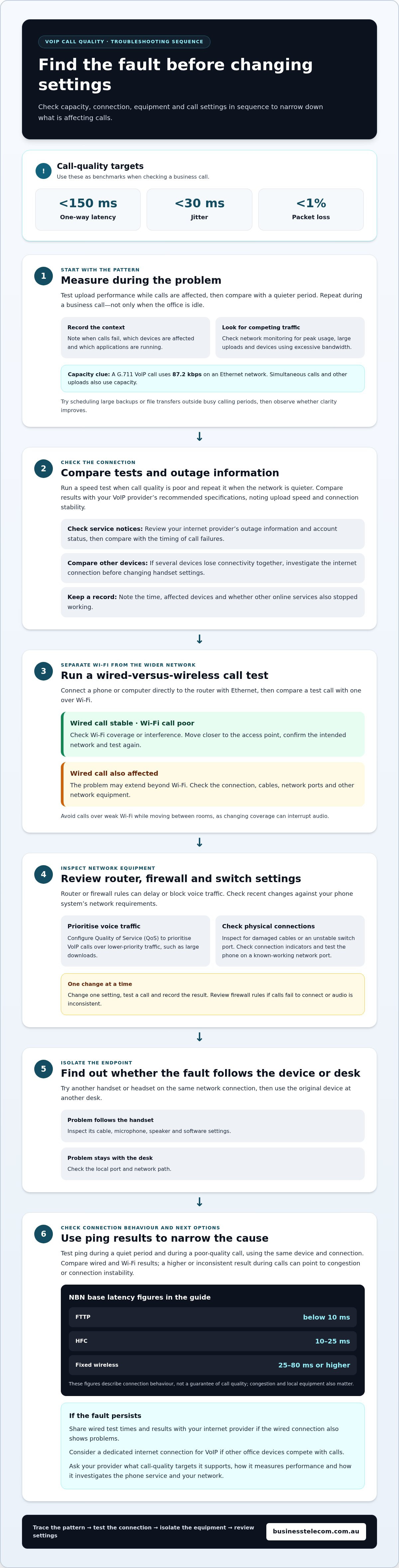
To fix VoIP call quality issues on the Gold Coast, start by checking the internet connection, network congestion and the equipment handling calls. For clear business calls, one-way latency should stay below 150 milliseconds, jitter below 30 milliseconds and packet loss below 1%. These checks help narrow down whether the cause is your connection, router, Wi-Fi or phone system.
Choppy audio, delays, dropped calls and one-way sound can disrupt customer conversations and daily work. A faster internet plan may not solve VoIP call quality issues on the Gold Coast if congestion, call settings or equipment are the cause.
This guide explains how to recognise common symptoms and troubleshoot your network, including routers, firewalls, switches and Wi-Fi. You’ll also learn how to test capacity and when a separate connection or professional support may be the practical next step, so you can investigate the cause instead of changing settings at random.
Key Takeaways
- Track when call problems happen and which devices are using the network to spot congestion patterns.
- Test a wired connection against Wi-Fi to help distinguish wireless issues from wider network problems.
- Check router, firewall and switch settings when calls have one-way audio, drop out or fail to connect.
- Use latency below 150 milliseconds, jitter below 30 milliseconds and packet loss below 1% as call-quality targets.
- If troubleshooting points to the phone system rather than the network, consider whether a business phone system better fits your calling needs.
Network congestion and upload capacity
VoIP calls share network capacity with other traffic, especially when staff upload large files or use cloud applications. Check capacity, equipment and network settings in sequence to isolate the cause.
-
Assess network congestion and upload capacity
Measure upload performance while calls are affected, then compare it with quieter periods. A G.711 VoIP call uses 87.2 kbps on an Ethernet network, but simultaneous calls and other uploads also consume capacity. Check network monitoring tools for peak usage and devices using excessive bandwidth. Schedule large backups or file transfers outside busy calling periods, and observe whether call clarity improves.
Repeat the test during a business call, not only when the office is idle. A speed test shows available capacity, while call quality can reveal whether traffic is competing at the same time. Record when problems occur and which applications are running.
-
Review router, firewall and network settings
Inspect router and firewall settings for rules that may delay or block voice traffic. Configure Quality of Service (QoS) to prioritise VoIP calls over lower-priority traffic, such as large downloads. Check whether recent setting changes match your phone system’s network requirements. Change one setting at a time, test a call and record the result.
Review firewall rules if calls fail to connect or audio is inconsistent. Network faults can also stem from a damaged cable, unstable switch port or misconfigured device. Check the cabling and connection indicators, then test the phone on a known-working network port.
- Test the user’s device separately. Try another handset or headset on the same network connection, then use the original device at another desk. If the problem follows the handset, inspect its cable, microphone, speaker and software settings. If it stays with the desk connection, check the local port and network path.
- If your network supports it, separate voice traffic with a voice VLAN. This puts phone traffic on its own logical network, making it easier to manage and prioritise. Confirm that phones, switches and router settings use the same VLAN configuration. Incorrect tagging can prevent calls from connecting or disrupt audio, so test after each change.
- Review network segmentation as well as congestion controls. A voice VLAN can reduce competition with general office traffic, but it doesn’t add upload capacity. Align QoS rules with the segmentation settings and check that large transfers aren’t overwhelming the shared connection. If problems continue, compare calls across different devices and network ports to narrow down the fault.
Why Is My VoIP Call Quality Poor and How Do I Fix It?
Test the connection in stages: compare wired and Wi-Fi calls, check NBN performance and review your internet provider’s outage information. These checks help distinguish a local network fault from a connection problem affecting the wider service.
-
Check for internet connection problems
Run an internet speed test when call quality is poor, then repeat it when the office network is quieter. Compare the results with your VoIP provider’s recommended specifications, and note whether upload speed or connection stability changes. To check for Gold Coast outages, review your internet provider’s service notices and account status, then compare them with the timing of call failures.
Test another device on the same connection, such as a mobile using office Wi-Fi. If several devices lose connectivity together, investigate the internet connection before changing handset settings. Record the time, affected devices and whether other online services also stopped working.
-
Troubleshoot wired connections and Wi-Fi
Connect a phone or computer directly to the router with Ethernet, then compare a test call with one made over Wi-Fi. If a wired call is stable but wireless audio is poor, check Wi-Fi coverage or interference. Move closer to the access point, confirm the device is connected to the intended network and test again.
Check cables and network ports for loose connections too. Avoid making calls over weak Wi-Fi while moving between rooms, as changing coverage can interrupt audio.
-
Review NBN connection types and VoIP connectivity
Identify your NBN connection type and measure response time during calls. FTTP can deliver latency below 10 milliseconds; HFC base latency is 10-25 milliseconds, while fixed wireless base ping times are 25-80 milliseconds or higher. These figures describe connection behaviour, not a guarantee of call quality, which also depends on congestion and local equipment.
If other office devices compete with calls, consider a dedicated internet connection for VoIP. Ask your provider what call-quality targets it supports, how it measures performance and how it investigates problems across the phone service and your network. Request clear details about its support process and any service commitments.
-
Test ping and connection response time
Measure ping to see how quickly data travels between your device and a test destination. Run the test during a quiet period and during a poor-quality call, using the same device and connection. A higher or inconsistent result during calls can point to congestion or connection instability.
Test from a wired device as well as Wi-Fi, then compare results. If the wired connection also shows problems, share the test times and results with your internet provider’s support team. If the issue points instead to your phone setup, review suitable business phone system options.
Router, firewall, switch and Wi-Fi troubleshooting
Yes. NBN congestion, Wi-Fi interference and router settings can contribute to dropouts; interference or handset positioning can also contribute to echo. Test with Ethernet, review QoS settings and compare calls before and after each change.
-
Check SIP ALG and router-related faults
Check whether SIP ALG is enabled in your router settings. SIP ALG can rewrite VoIP traffic and disrupt calls, so compare call behaviour with the setting disabled if your network administrator or phone-system instructions recommend it. Change one setting at a time, then test incoming and outgoing calls. Record any changes to audio, connection stability or call setup.
-
Review firewall rules and router timeouts
Review firewall and NAT rules if calls have one-way audio or fail to connect. These symptoms can relate to NAT or firewall handling, so make sure the required VoIP traffic is permitted according to your phone system’s network requirements. Check router session timeouts too, as settings that close connections too quickly may interrupt ongoing traffic. Don’t disable the firewall or open every port as a test.
-
Configure router QoS settings
Configure Quality of Service (QoS) to prioritise voice traffic over downloads and other less time-sensitive activity. Where your router allows it, apply the priority to phones or voice traffic rather than treating every device equally. Test calls while another device downloads a large file. If latency or audio improves, check that the QoS rules identify voice traffic correctly.
-
Troubleshoot switch and Wi-Fi settings
Check that switches are up to date and capable of handling VoIP traffic, then inspect the phone’s switch port and cable. For Wi-Fi phones, test near the access point and compare the result with a wired call. If Ethernet works but Wi-Fi calls break up, investigate wireless coverage or interference before changing firewall rules. Keep phones connected to the intended network.
- Isolate the fault by testing one phone, cable and network port at a time. If a router adjustment makes no difference, restore the original setting before testing another. Note the affected phone, call direction and any echo or dropout, then repeat the test at another desk. This gives your network administrator a clear fault pattern without risking unrelated router or firewall settings.
Will a faster internet plan fix bad VoIP calls?
A faster plan helps when calls compete for insufficient bandwidth, but it won’t automatically fix latency, jitter or packet loss. Power or internet outages can interrupt VoIP, including calls to 000, so keep a charged mobile available and follow your workplace outage procedure.
-
Review bandwidth and call traffic
Measure upload and download performance while calls are active, then compare it with quieter periods. Video meetings, cloud backups and remote staff can all compete with voice traffic. If quality deteriorates during large uploads, schedule transfers outside busy calling periods or assess whether a separate internet connection for VoIP could reduce competition.
A faster plan may add capacity, but first check whether congestion is inside your office network or on the internet connection itself. Compare results from a wired device and note how many calls and other high-traffic tasks were running. This helps identify the bottleneck before you change plans.
-
Check VoIP bandwidth requirements
Calculate bandwidth using the codec and number of simultaneous calls, including both upload and download capacity. A G.711 call uses 87.2 kbps on an Ethernet network; a compressed G.729 call uses 31.2 kbps. A standard high-definition G.722 call uses approximately 80 to 100 kbps of symmetrical upload and download bandwidth per active call.
These figures describe voice traffic, not the full capacity your office needs. Allow for other internet use and concurrent calls, especially when remote staff share the connection. Compare actual busy-period performance with your VoIP provider’s recommended specifications instead of relying only on the plan’s advertised speed.
-
Compare call-quality network targets
Measure latency, jitter and packet loss during an affected call. Keep one-way latency below 150 milliseconds, jitter below 30 milliseconds and packet loss below 1% for acceptable voice quality. An ideal one-way latency target is less than 80 milliseconds, while 0% packet loss is ideal.
Packet loss above 2% is a poor-quality threshold; loss above 2-3% can cause clipping, silent gaps or dropped calls. A fast connection can still perform badly if packets arrive late or fail to reach their destination. Record results across busy and quiet periods to see whether traffic load corresponds with call problems.
- Check continuity arrangements before relying on VoIP for urgent calls. Internet and power interruptions can stop connected phones from working, including access to 000 through the affected service. Keep a charged mobile available, and make sure staff know how to use it if the office connection fails.
Common VoIP call-quality symptoms and causes
Match each symptom to where it occurs, then test one device or network path at a time. The pattern often shows whether the fault is with the phone system, internet connection, router, Wi-Fi or user device.
- For choppy or robotic audio, check network stability. Delayed, uneven or lost packets can break up speech, even when a speed test looks acceptable. Note whether the problem starts during a large download, video meeting or cloud backup. If calls improve when that traffic stops, congestion or inconsistent network performance may be affecting voice packets.
Compare calls during busy and quiet periods, and record which applications are running. Quality of Service settings can prioritise voice traffic, but they won’t fix every connection fault.
- For delays between speakers, investigate latency. A noticeable pause can make people interrupt each other, particularly on calls with remote staff. Test using a wired connection and compare it with Wi-Fi. If both have delays, check the internet path and phone system; if only Wi-Fi is affected, inspect wireless coverage and interference.
Record the call time and affected location. This helps distinguish a recurring network pattern from a one-off issue.
- For one-way audio, check the call path and firewall. If one person hears nothing while the other can hear clearly, inspect router NAT handling and firewall rules for the affected phones. Compare incoming and outgoing calls, as the symptom may occur in only one direction. Don’t disable firewall protection; review the relevant VoIP settings instead.
If the fault follows one desk phone to another network port, inspect the handset and cable. If several phones are affected at once, investigate shared network settings.
- For echo, isolate the handset and room. Test with another handset or headset, then avoid using speakerphone. Echo that follows one device points to its microphone, speaker or audio settings. If several phones echo on separate calls, review the phone system and network equipment rather than replacing one handset.
For dropped calls, note whether disconnection follows movement between Wi-Fi zones, a router restart or a period of inactivity. These patterns can point to wireless coverage, connection stability or router timeouts.
- For faults affecting multiple phones, test shared equipment first. Compare desk phones on different switch ports, then test one phone using a stable wired connection. If swapping the handset, cable and port makes no difference, record the symptom, call direction and time. A consistent fault across devices is more likely to involve shared network equipment or the phone system.
If recurring call symptoms disrupt customer conversations, discuss your business calling needs.
Business Telecom: Business Phone System
Business Telecom provides Business Phone Systems for organisations reviewing their calling setup after checking network performance and equipment. If recurring call problems point to the phone system rather than local Wi-Fi or a single handset, assess whether your current setup suits your team’s needs.
Business Telecom also provides Office Phone Systems and small business phone systems, including cloud phone solutions for in-office and flexible remote calling. These options can suit businesses considering a different phone system setup rather than simply changing their internet plan. The right fit depends on how your staff make and receive calls and how your business is organised.
To discuss your business phone system needs, visit businesstelecom.com.au.
Set your business up for clearer calls
Reliable calling shapes the experience customers have with your business. Treat recurring VoIP call quality issues on the Gold Coast as a reason to review how your phone system supports your team, rather than as a series of isolated faults. A setup suited to your staff’s calling patterns can make everyday communication easier to manage.
Business Telecom provides Business Phone Systems, Business Land Lines and Office Phone Systems for organisations reviewing their communication setup. If you’re planning a change or want a phone system that better fits your workplace, contact Business Telecom to discuss your options.
Take the next step by contacting Business Telecom about your business phone system. A clear view of your needs can help guide a practical conversation about keeping your business connected.
Frequently Asked Questions
Why does my VoIP call sound robotic?
Robotic or distorted speech usually means voice packets are arriving late, unevenly or not at all. For VoIP call quality issues on the Gold Coast, check whether the problem occurs during large downloads, cloud backups or busy video meetings, then compare a wired call with Wi-Fi. If audio improves when competing traffic stops, congestion is a likely factor. If the problem follows one handset, inspect its microphone, headset connection and audio settings.
How do I know if SIP ALG is causing my VoIP problems?
Look for call faults that began after a router change, particularly failed connections or disrupted audio. SIP ALG can rewrite VoIP traffic and interfere with calls. Check the router’s SIP ALG setting, then change it only if your network administrator or phone-system guidance recommends doing so. Record the result and restore the original setting if the test makes calls worse.
What is a good MOS score for business VoIP calls?
A business-grade VoIP connection should consistently achieve a Mean Opinion Score (MOS) of 4.0 or higher on the 1-to-5 scale. Scores from 4.0 to 4.2 indicate clear, acceptable business-call quality, while 4.3 to 4.5 describes HD voice quality. A score below 3.6 is noticeably poor. Compare results across calls and times, rather than judging the system from one test.
Where does Quality of Service fit into the PBX puzzle?
Quality of Service (QoS) is a network setting, not a feature that replaces the PBX or phone system. Configure QoS on a capable router or switch to prioritise voice traffic over activities such as downloads. The PBX manages call functions, while network QoS helps voice packets move ahead of less time-sensitive traffic. Test calls during normal office use to check the configuration.
Why can they hear me but I can’t hear them?
One-way audio often points to Network Address Translation (NAT) or firewall handling between the phones and the other caller. Check whether the issue affects incoming calls, outgoing calls or both, then test another handset on the same network. Review the router’s VoIP and firewall settings against your phone system’s requirements. Don’t disable firewall protection or open all ports as a workaround.
What are the most common causes of poor VoIP call quality on the Gold Coast?
VoIP call quality issues on the Gold Coast can stem from internet congestion, Wi-Fi interference, router or firewall settings, switch faults, handset problems or the phone system. Note whether several phones fail together or only one desk is affected. A shared fault points towards equipment or the connection serving multiple users; a fault limited to one device suggests checking that handset, cable and port first.
What internet speed and upload bandwidth are recommended for VoIP calls in Australia?
There isn’t one suitable internet speed for every office because codec choice, concurrent calls and other network use affect capacity. On Ethernet, a G.711 call uses 87.2 kbps; G.729 uses 31.2 kbps. A standard high-definition G.722 call uses approximately 80 to 100 kbps of symmetrical upload and download bandwidth per active call. Allow additional capacity for other business traffic.
How do latency, jitter and packet loss affect VoIP call quality, and what are acceptable limits?
Latency delays speech, jitter makes packets arrive inconsistently, and packet loss removes parts of the audio. For acceptable voice quality, keep one-way latency below 150 milliseconds, jitter below 30 milliseconds and packet loss below 1%. Less than 80 milliseconds one-way latency and 0% packet loss are ideal targets. Packet loss above 2% is poor, while 2-3% can cause clipping, silent gaps or dropped calls.