SIP ALG can be the reason a business VoIP call drops, sounds distorted or has one-way audio. For Gold Coast businesses, troubleshooting business VoIP call quality means checking this router feature alongside the internet connection, network settings and phones, rather than assuming the phone system itself is at fault.
When calls interrupt customer conversations or staff can’t register their phones, it can be hard to know where to start. A step-by-step diagnosis helps narrow down the cause before you change network settings.
This guide explains what SIP ALG does and how it can affect calls, then walks through checks for network quality, dropped calls and registration failures. You’ll also learn when to involve a network specialist so router or firewall changes are made carefully.
Key Takeaways
- Prioritise voice traffic on your network and consider a separate voice VLAN to help calls cope when other network activity increases.
- Trace robotic audio, static and one-way sound through the phone, Wi-Fi, router and firewall to narrow down the fault.
- Use the timing and pattern of dropped calls or registration failures to identify whether the issue points to network settings or the phone system.
- Plan internet and power backup options separately, as each outage can affect business calls in a different way.
Quality of Service and voice VLANs
For Gold Coast businesses, start by noting when audio problems occur and which devices are affected. Compare network conditions during quiet periods and busy internet use before changing phone settings.
-
Assess VoIP call quality
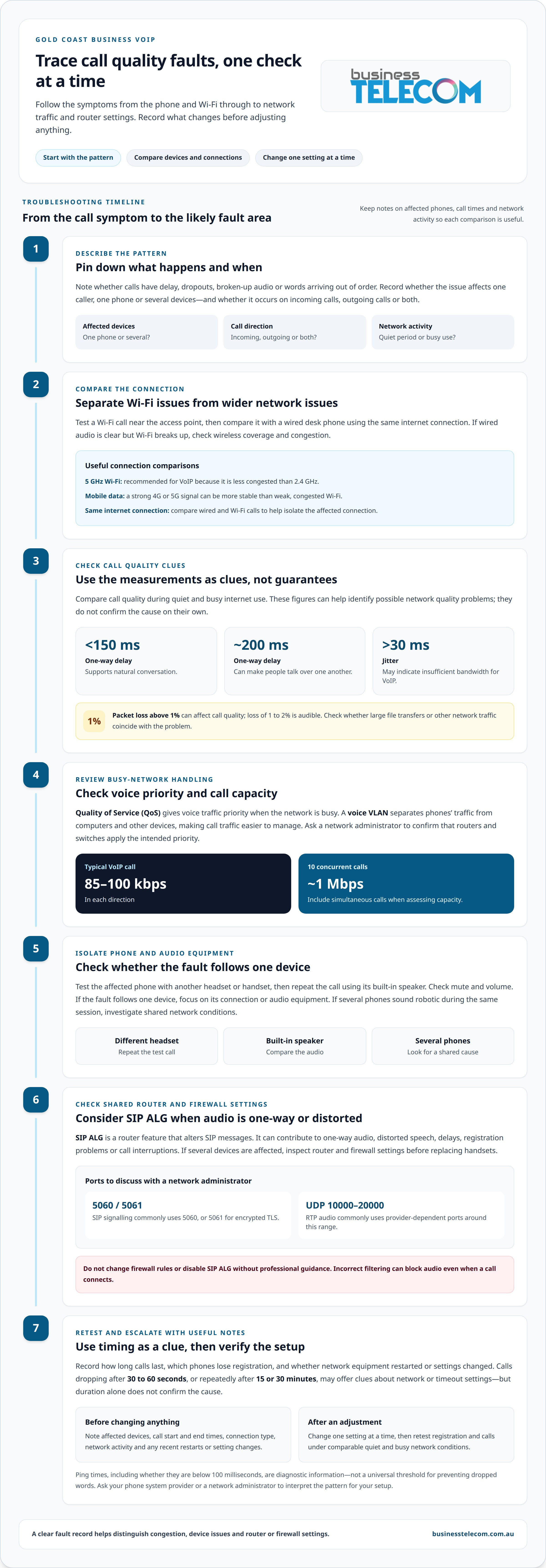
Record whether calls have delay, dropouts, broken-up audio or words arriving out of order. Compare desk phones during calls with other network activity, such as large file transfers. One-way delay below 150 milliseconds supports natural conversations; around 200 milliseconds can make people talk over one another. Jitter above 30 milliseconds may indicate insufficient bandwidth for VoIP.
-
Review Wi-Fi call quality
Test a Wi-Fi call near the access point, then compare it with a wired desk phone on the same internet connection. If wired audio stays clear but Wi-Fi breaks up, check wireless coverage and congestion. The 5 GHz Wi-Fi band is recommended for VoIP because it’s less congested than 2.4 GHz. A strong 4G or 5G signal can also be more stable than weak, congested Wi-Fi.
-
Check Quality of Service and voice VLANs
Ask a network administrator or an IT provider like Cloud Choice Technologies to review Quality of Service (QoS), which gives voice traffic priority when the network is busy. A voice VLAN separates phones’ traffic from computers and other devices, making call traffic easier to manage. Confirm routers and switches apply the intended priority. A typical VoIP call uses around 85 to 100 kbps in each direction; ten concurrent calls need around 1 Mbps. Include simultaneous calls when assessing capacity.
- Retest after each network change, comparing call quality during quiet and busy internet use. Record affected devices, call times and network activity. These details can help distinguish congestion from a phone or system fault and give an administrator a clear basis for further investigation.
Why do my VoIP calls sound robotic or static?
Identify whether the fault affects one caller, one device or every call. This pattern can help distinguish a device issue from network traffic or SIP signalling faults.
-
Check one-way audio and no-audio faults
Place test calls to different numbers and note who cannot hear audio. If the fault affects several devices, inspect router and firewall settings before replacing handsets. SIP ALG, a router feature that alters SIP messages, can cause one-way audio, distorted speech or delays. Record whether the problem affects incoming calls, outgoing calls or both.
-
Troubleshoot choppy and robotic audio
Compare a wired desk phone with a mobile call using the same business internet connection. If only the mobile call breaks up, test it on mobile data instead of Wi-Fi. Packet loss above 1% can affect call quality, and loss of 1 to 2% is audible. Check whether large file transfers or other network traffic coincide with the audio problem.
- Test the affected phone with another headset or handset, then repeat the call using its built-in speaker. Check the mute control and volume before changing network settings. If the fault follows one device, focus on its connection or audio equipment. If several phones sound robotic during the same session, investigate shared network conditions instead.
- Ask a network administrator or an IT and telecommunications partner such as SolaaS Limited to review SIP and voice traffic across the router and firewall. SIP signalling commonly uses port 5060, or port 5061 for encrypted TLS; RTP audio commonly uses provider-dependent UDP ports around 10000 to 20000. Incorrect filtering can block audio while a call still connects. Don’t change firewall rules or disable SIP ALG without professional guidance.
Dropped calls and registration failures
Look for a consistent pattern before changing network settings. Record which phones lose registration, whether calls fail in one direction and when disconnections occur. This information can help distinguish a device problem from an issue affecting the wider phone system.
- Test incoming and outgoing calls from a desk phone, then repeat from a remote device. Note whether one handset or several fail to register, and whether the problem follows a particular location. If office phones work but remote calls do not, record the difference between their network connections. Keep these notes together so the fault can be assessed under consistent conditions.
- Record how long calls last before disconnecting. Calls that drop after 30 to 60 seconds or repeatedly after 15 or 30 minutes may offer clues about network or timeout settings, but call duration alone does not confirm the cause. Note the start and end times across affected calls, rather than relying on a single occurrence, and ask your provider to interpret the pattern for your setup.
- Review whether the internet connection or network equipment has restarted or had settings changed. Check the router, firewall, switches and Wi-Fi, and note whether phones remain registered after a restart. Record ping times, including whether they are below 100 milliseconds, but treat this as diagnostic information rather than a universal threshold for preventing dropped words. Change one setting at a time and retest, so the effect of each adjustment is clear.
- Ask a network administrator to review SIP ALG and firewall rules before making changes. SIP ALG can interfere with connections, registration and call continuity; disabling it may resolve some system problems, depending on the setup. Do not treat a router timeout of at least 60 seconds or a UDP timeout limit of 300 seconds as universal recommendations. Confirm appropriate settings with your phone system provider or equipment documentation before changing them. Apply changes under professional guidance, then retest registration and calls from affected devices.
What backup options keep business phones working during internet or power outages?
Plan separately for internet and power failures. A mobile data connection may help during an internet outage, but it won’t keep office equipment running without power.
- Map which equipment each phone needs. List the modem or router, network switches and desk phones, including any phones powered through network cabling. If the internet connection fails but the office still has power, a separate 4G or 5G connection may provide another path. A strong mobile signal can be more stable than weak, congested Wi-Fi.
- Decide how calls should reach staff if the main connection fails. Depending on your phone system’s configuration, options may include using mobile phones on cellular data or redirecting business calls to nominated mobiles. Set up the fallback arrangement before an outage, and make sure staff know which devices to use and how customer calls will be answered.
- Prepare for a power outage by using an uninterruptible power supply (UPS) for essential network equipment. A UPS provides temporary power, but runtime depends on the equipment’s load and the battery’s condition. Identify which router, switch and phone equipment must stay powered, then test the arrangement under controlled conditions. A UPS won’t restore an internet service that has also failed.
- Test the complete fallback plan, including incoming and outgoing calls, mobile coverage and call routing. Confirm the business’s VoIP emergency calling arrangements and that location information is accurate before go-live. In Australia, emergency calls use 000. Document who activates the fallback, how staff communicate updates and how normal calling is restored when service returns.
Reviewing how your phone system handles outages? Discuss your business phone requirements with Business Telecom.
Business Telecom
Business Telecom helps Gold Coast businesses explore business phone system options when recurring VoIP faults disrupt calls or make the current setup difficult to manage. The checks above can help identify whether symptoms point to network conditions, device settings or the phone system. If problems persist, describe when calls fail, which phones are affected and what changes you’ve made. This gives you a practical starting point for discussing your communications needs and whether another system may suit your team better.
Business Telecom provides business phone systems, office phone systems and small business phone systems. The right setup depends on your users, how your team handles calls and what’s affecting reliability.
Contact Business Telecom to discuss your Gold Coast business phone system requirements.
Build a clearer path forward
Use troubleshooting business VoIP on the Gold Coast as a starting point for reviewing how your team relies on business communications. At your next phone-system review, consider which roles need desk phones, which staff make calls remotely and how customer calls should be handled as your operations change. These needs can guide decisions about a system configuration suited to your day-to-day work.
If call issues persist or your current setup no longer suits your team, Business Telecom can help you discuss suitable phone-system options. A clear picture of your users, call patterns and operational priorities gives the conversation a practical focus, without assuming every business needs the same setup.
Discuss your phone system needs with Business Telecom and take the next step towards a setup that works for your team.
Frequently Asked Questions
What is SIP ALG?
SIP ALG stands for Session Initiation Protocol Application Layer Gateway. It’s a router or firewall function that helps voice-session signalling pass through network address translation, which maps private network addresses for external communication. Its behaviour varies by equipment. The setting is usually managed in network equipment, not on a desk phone, so identify the router model before looking for its configuration controls.
Why can I hear the caller, but they can’t hear me?
The problem may be with your microphone rather than the caller’s audio path. Check the phone’s mute indicator, selected microphone and headset connection, then make a short test call using the handset’s built-in microphone. For a computer-based calling app, check that it has permission to use the microphone and has selected the intended audio device.
Why do my calls suddenly drop after exactly 15 or 30 minutes?
A repeatable cutoff at a particular call duration is a useful clue, but not a diagnosis on its own. Note the call’s start and end times and whether it was incoming or outgoing. Give those details to the person managing your network or phone service, who can compare them with relevant call records and connection settings.
What are the most common business VoIP problems on the Gold Coast?
Businesses can experience poor or interrupted audio, disconnected calls, one-way sound and phones that fail to register. These symptoms affect call handling differently: a registration problem may leave a phone unavailable for calls, while an audio fault may occur after a call connects. Record the precise symptom and affected handset to describe the impact clearly.
How do I troubleshoot VoIP call quality, jitter, latency and dropped calls?
Establish a baseline before making changes: record the affected handset, call time and symptom, then make one controlled test call. If you have network measurements, note jitter, latency and packet loss alongside the result. Change one relevant setting at a time and retest under comparable conditions. This creates a clear record of what changed and whether call performance improved.
How do I fix business VoIP phones that cannot register or make calls?
First distinguish a registration failure from a phone that registers but cannot place calls. Note the handset’s displayed status or error message, and check whether other phones show the same state. Confirm the device has a network connection and its account details are current. Record the error message before restarting or resetting the phone, so useful diagnostic information isn’t lost.